订单管理系统
常见问题及基础操作
登录OMS
清除浏览器缓存的企业代码
易仓ERP推单常见问题
公共基础
业务基础数据
常用发货人
公司资料
用户权限
角色管理
用户管理
用户个人信息
基础配置
授权管理
开发者信息
Linnworks平台配置
Shipping业务配置
Fulfillment业务
Fulfillment Order
ERP&第三方系统对接配置
领星ERP对接配置
赛狐ERP对接配置
领星WMS对接配置
易仓ERP对接配置
商品管理
创建SKU(必须)
创建申报产品(根据需要)
海外仓
入库
创建入库单
创建预约(根据仓库要求)
打印箱唛/商品条码
出库-B2C
创建B2C出库单
批量创建出库单
FBA退件入库管理
创建FBA退件入库单
出库-B2B
创建B2B出库单 (非FBA)
出库-FBA
创建FBA出库单-常用
异常管理
小包快递
订单管理
新增小包快递订单
财务管理
我的账户
本文档使用 MrDoc 发布
-
+
首页
Fulfillment Order
Here is an explanation of how to configure Linnworks system to integrate with OMS system and push outbound orders after authorization in OMS system. ## Install APP Method 1: Click on the link below, enter your account and password for authorization, and install the "Fulfillment By GRL" app. https://apps.linnworks.net/Authorization/Authorize/61f2359e-3be7-44f7-90d3-8a6987715666 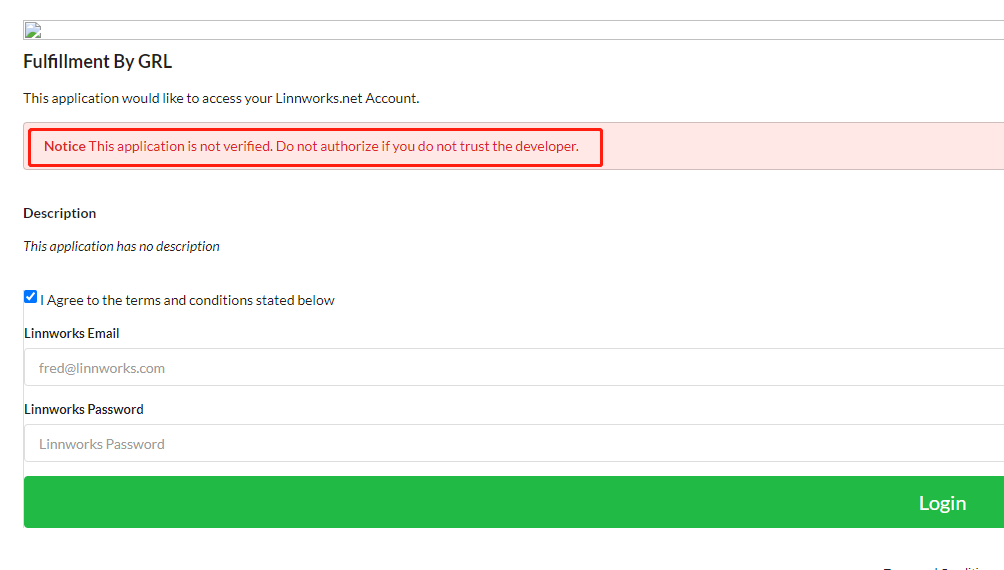 After entering the account password, select version 0.0.1 and click "Install" to install. 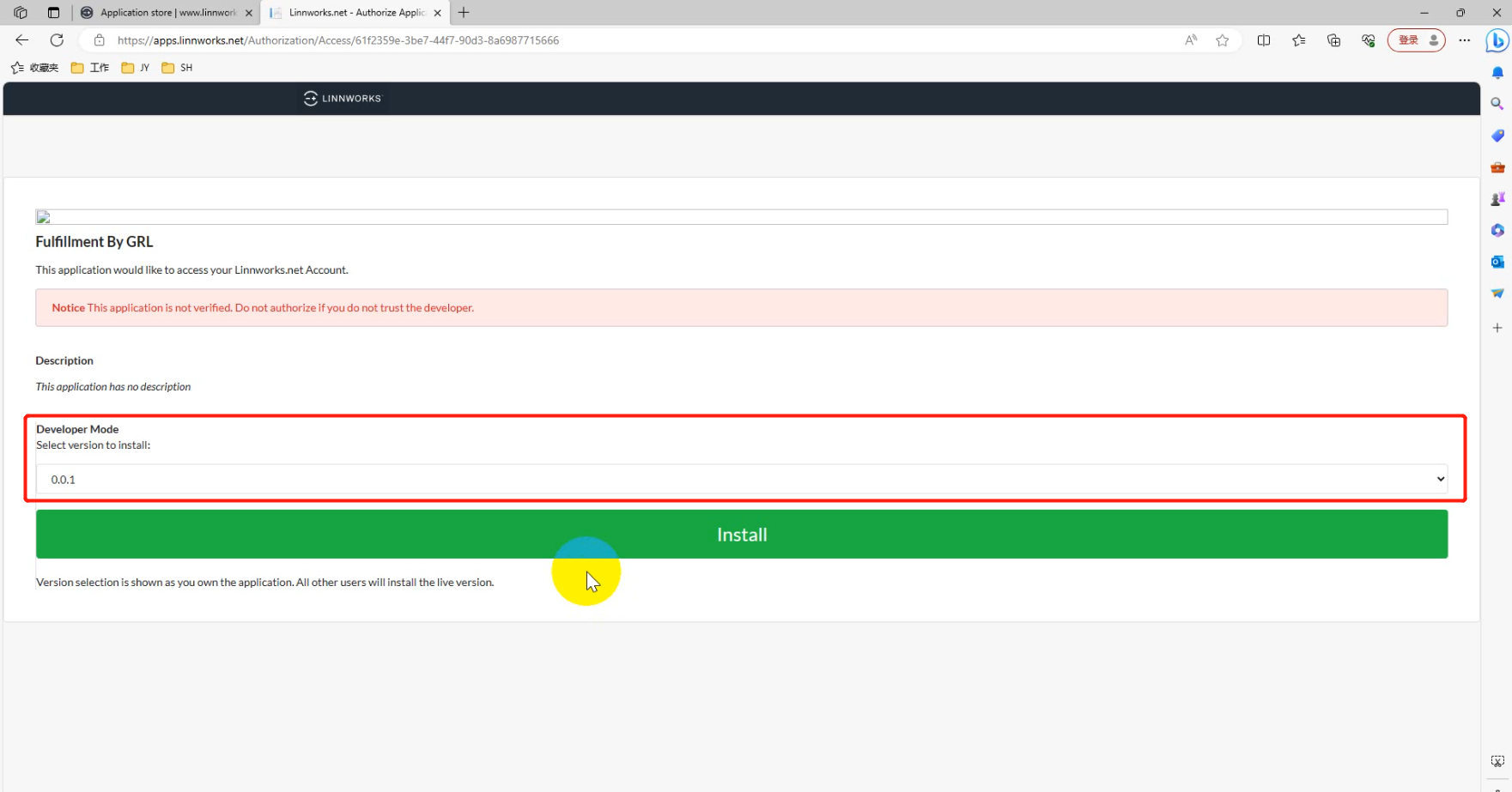 The following page appears and the installation is successful. 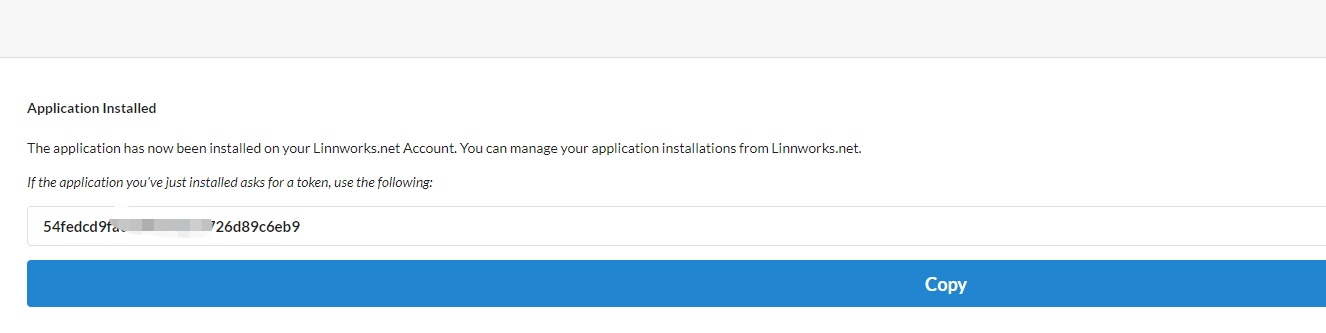 Method 2: Follow the path below to enter the APP Store, find "Fulfillment By GRL", click the "Install" button, and install the GRL Fulfillment APP: 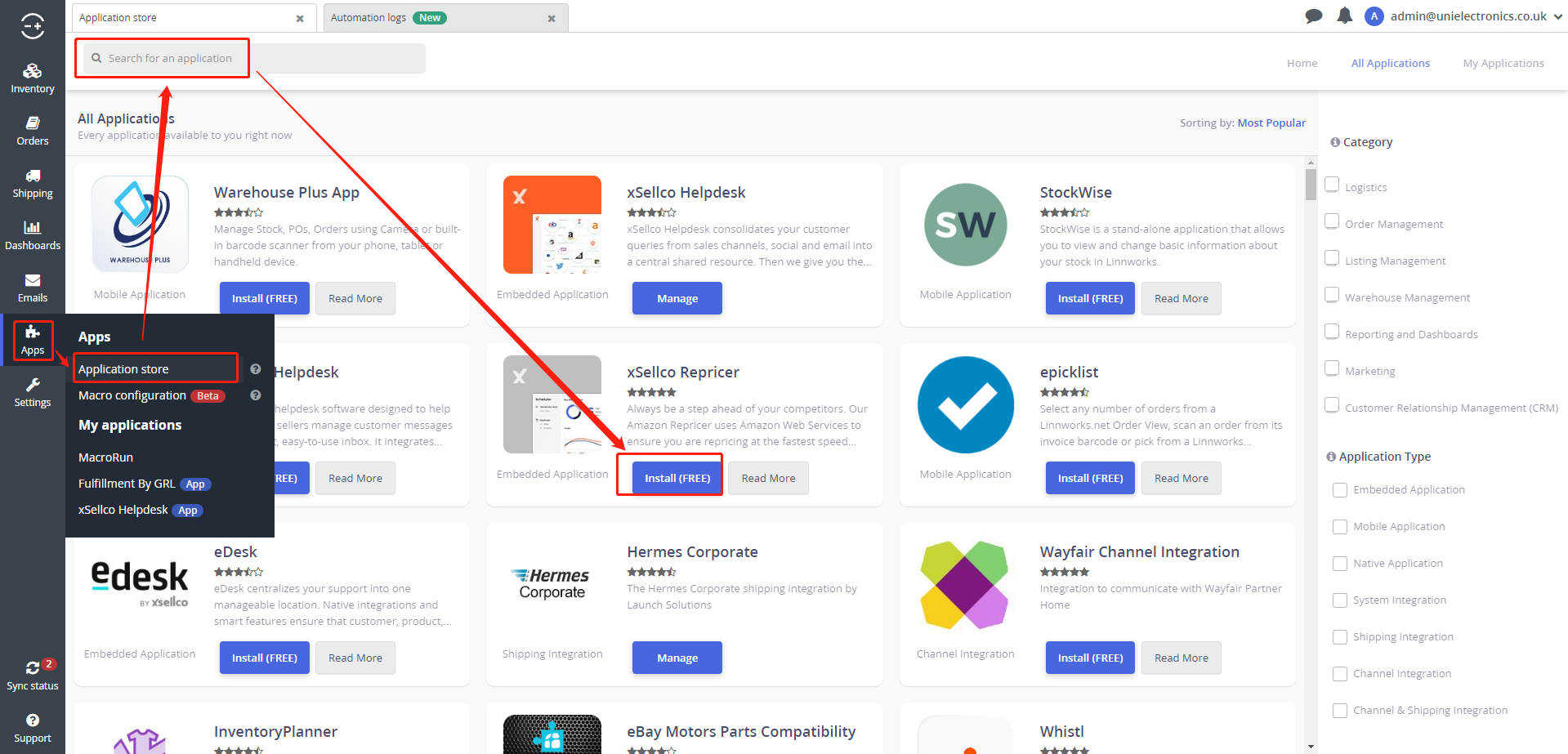 ## Using APP ### Open APP After the APP is successfully installed, refresh the system and you can find "Fulfillment By GRL" in the APP menu, click to enter the operation page. 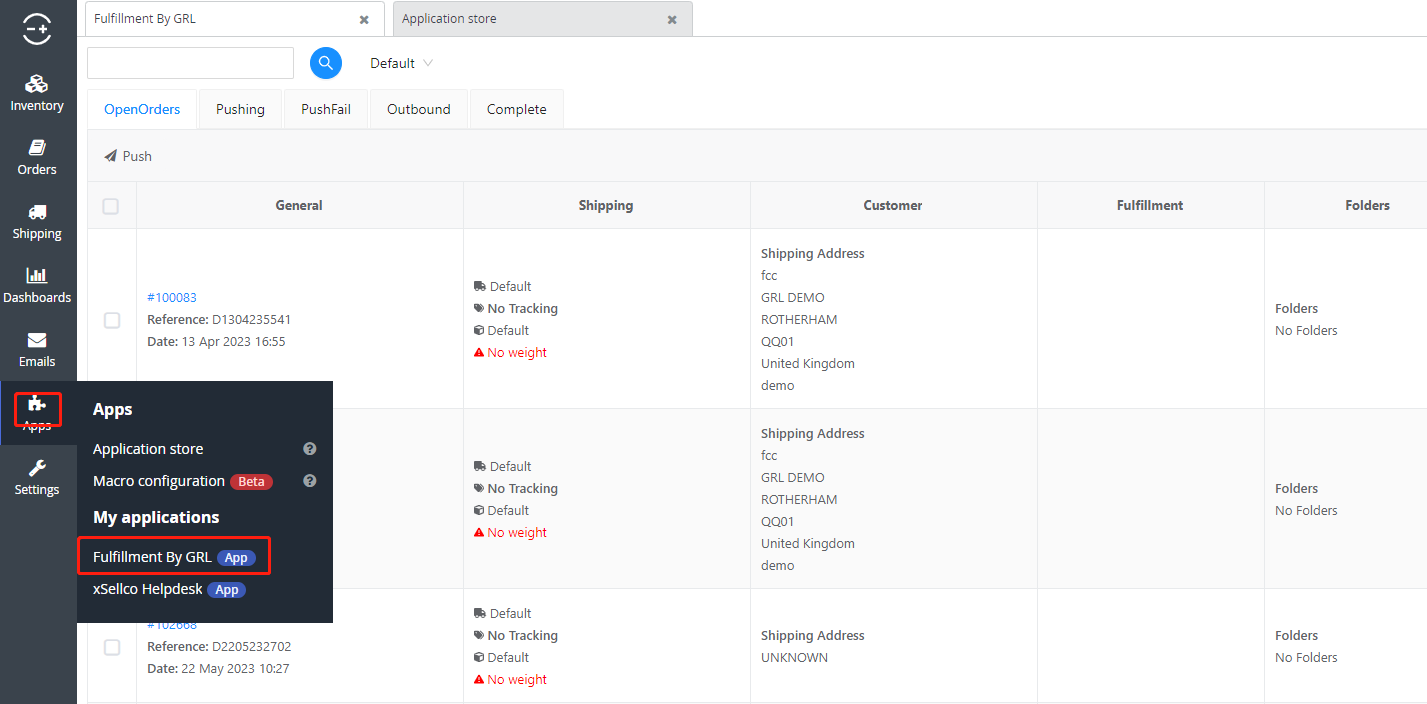 ## Configure information in the APP ### Settings - Basic Settings Main configuration includes Token, automatic synchronization of shipping status, automatic synchronization of inventory, and tagging of shipments. Please refer to the following figure and the detailed explanation below. 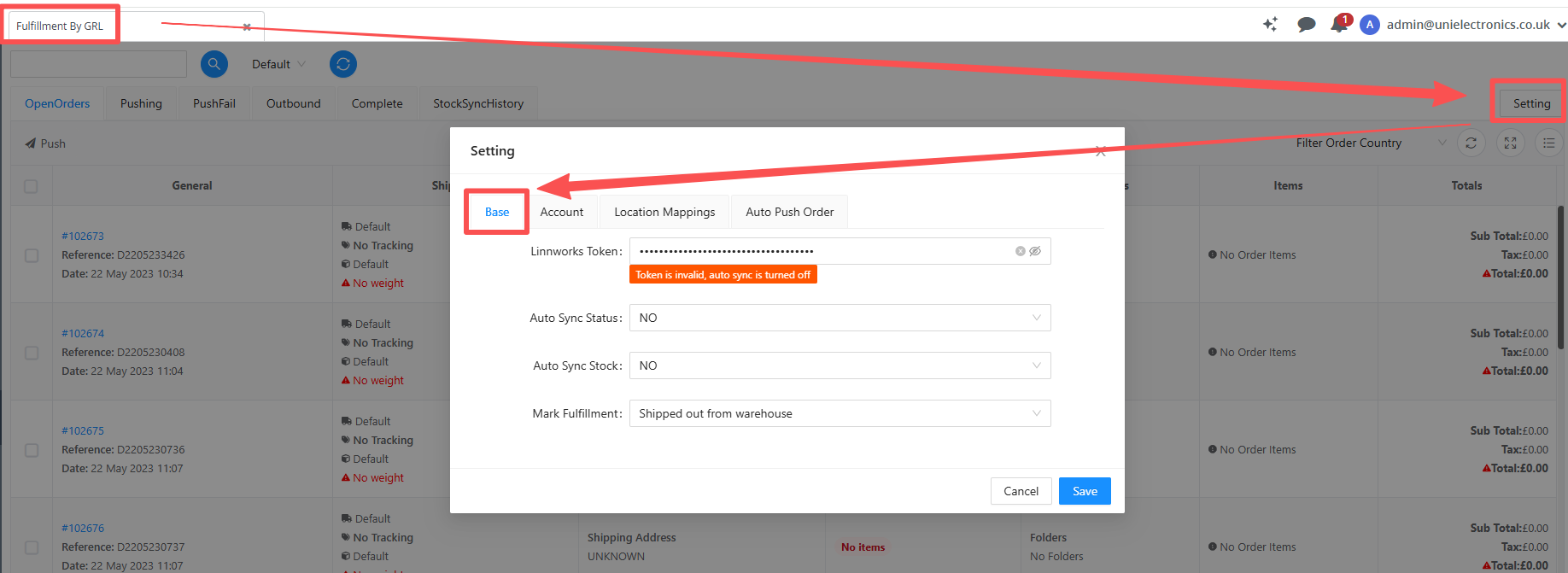 **Linnworks Token:**The Token obtained after installing the APP is the credential for data exchange between Linnworks and GRL systems, and must be correct. **Auto Sync Status:**Automatically synchronize the shipping status of the outbound order and set the synchronization frequency: If NO is selected, the shipment status of orders in the GRL system will not be synchronized; If other options are selected, the system will automatically query the status of orders in the GRL system at regular intervals based on the selected time (==recommended to configure 12 or 24 hours==) and update it to Linnworks. The successful creation of the outbound order indicates the "Outbound" status, while the completion of GRL outbound indicates the "Complete" status. **Auto Sync Stock:**Automatically synchronize SKU inventory to Linnworks: If NO is selected, it will not automatically synchronize; If other options are selected, the system will periodically query the inventory of SKUs in the GRL system based on the selected time (==recommended to choose 5 days==) and update it to Linnworks. Note that warehouse mapping must be configured, and both SKUs must be the same, otherwise synchronizing inventory will fail. **Mark Fulfillment:**There are two options for marking the shipping operation node: Shipped out from warehouse - marked as shipped after the package is dispatched from GRL warehouse; Once the waybill is obtained - mark the shipment as soon as the waybill is obtained. Under normal circumstances, GRL requests the final service provider to obtain the tracking number and logistics waybill upon receiving the outbound order. ### Settings - Account Settings Set the account information for GRL application here. As shown in the figure below, open the Setting window, click on the "Account" tab, and you can maintain the authorization information of the GRL system. The authorization information of GRL can be applied for in the OMS system. Please refer to the details《[Developer Information](https://help.wlwytech.com/project-8/doc-234/ "Developer Information")》. If there are multiple accounts in GRL, multiple accounts can be maintained, and the names of the accounts can be customized to be short and easy to remember. 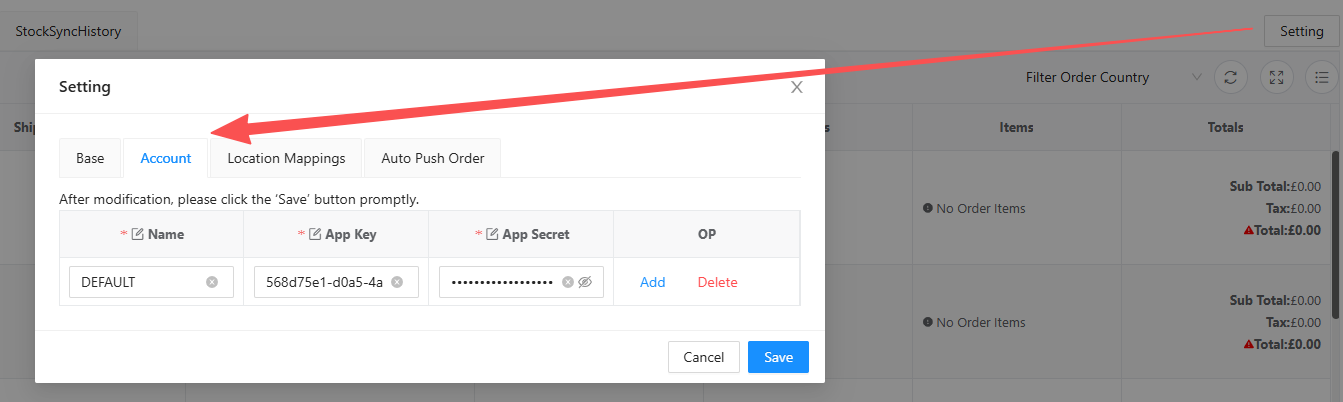 ### Settings - Warehouse Mapping Switch to the "Location Mapping" tab in the Setting window and establish a mapping relationship between your Location in the Linnworks system and the warehouse in the GRL system. Account Name is the account name maintained in the account settings above. After selection, the system will use the selected Account to request the GRL interface to obtain the available warehouses for that account in GRL (the last column Warehouse of Supplier), and establish a mapping relationship between Linnworks and GRL warehouses after selection. 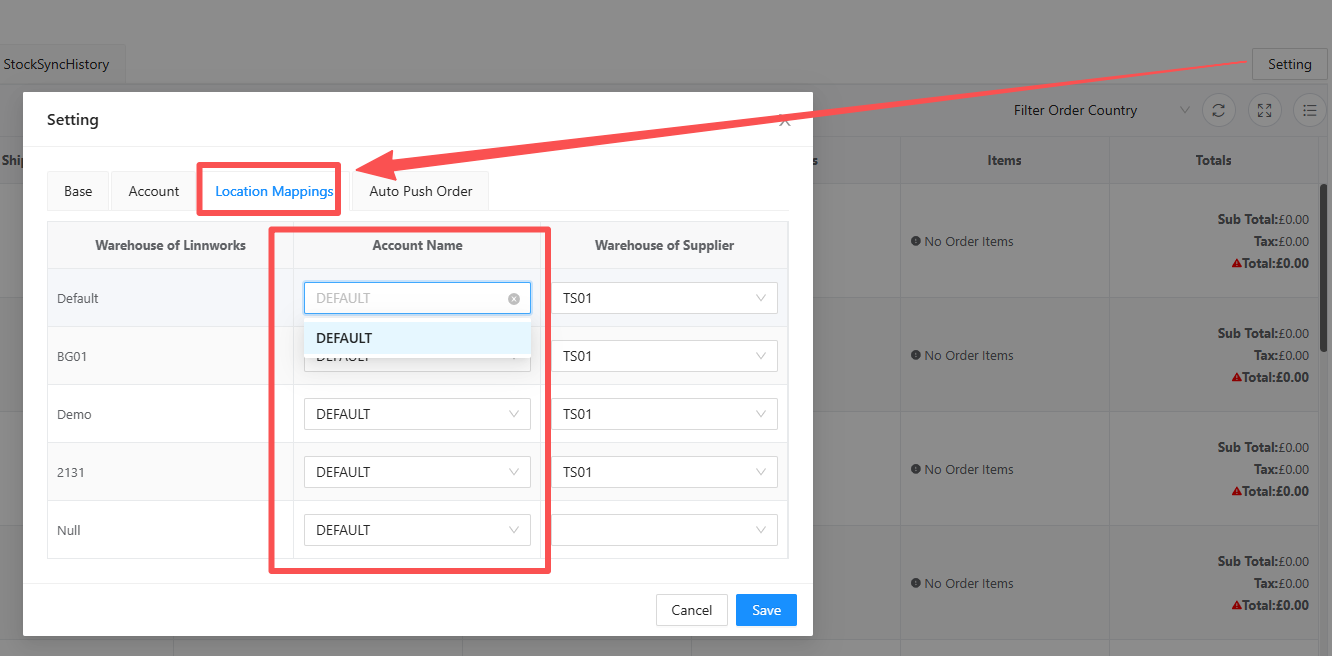 ### Settings - Automatic Push Order When an order is assigned to a GRL warehouse (Locaiont with mapped GRL warehouse) through "Move Location", the APP supports automatically pushing the order to the GRL system to generate an outbound order based on the settings set here. As shown in the figure below, you can configure the frequency of automatic order push (it is recommended to set it to 1 hour). After setting, the time of the last and next order push tasks will be displayed below. In the table below, you can specify which warehouse to ship from and which logistics method to use based on the destination country of the order. After the configuration is completed, the system will execute tasks according to the configured frequency, find the logistics method based on the countries and shipping warehouses configured in the table, and push the eligible orders to the GRL system to generate outbound orders according to the configured logistics method. Automatic chargeback refers to the asynchronous queuing and execution of scheduled tasks by the system. If not needed, do not configure (Auto Push Order is set to NO). 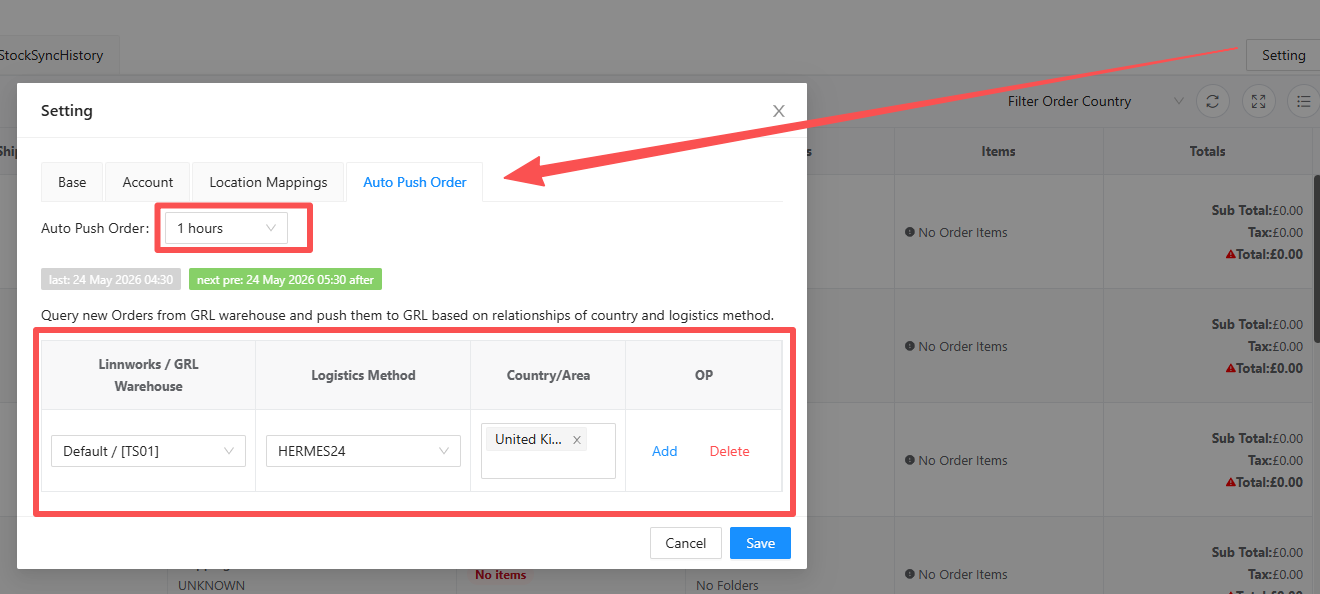 ## Process orders ### Move Warhouse As shown in the figure below, move the order to be shipped from the GRL warehouse to the corresponding warehouse in the OpenOrders page.  ### Push order Switch to the correct warehouse, and on the "OpenOrders" tab, you will find all pending orders under the selected warehouse. Select the order, click the "Push" button, and the APP will asynchronously call the GRL API interface to create an outbound order. 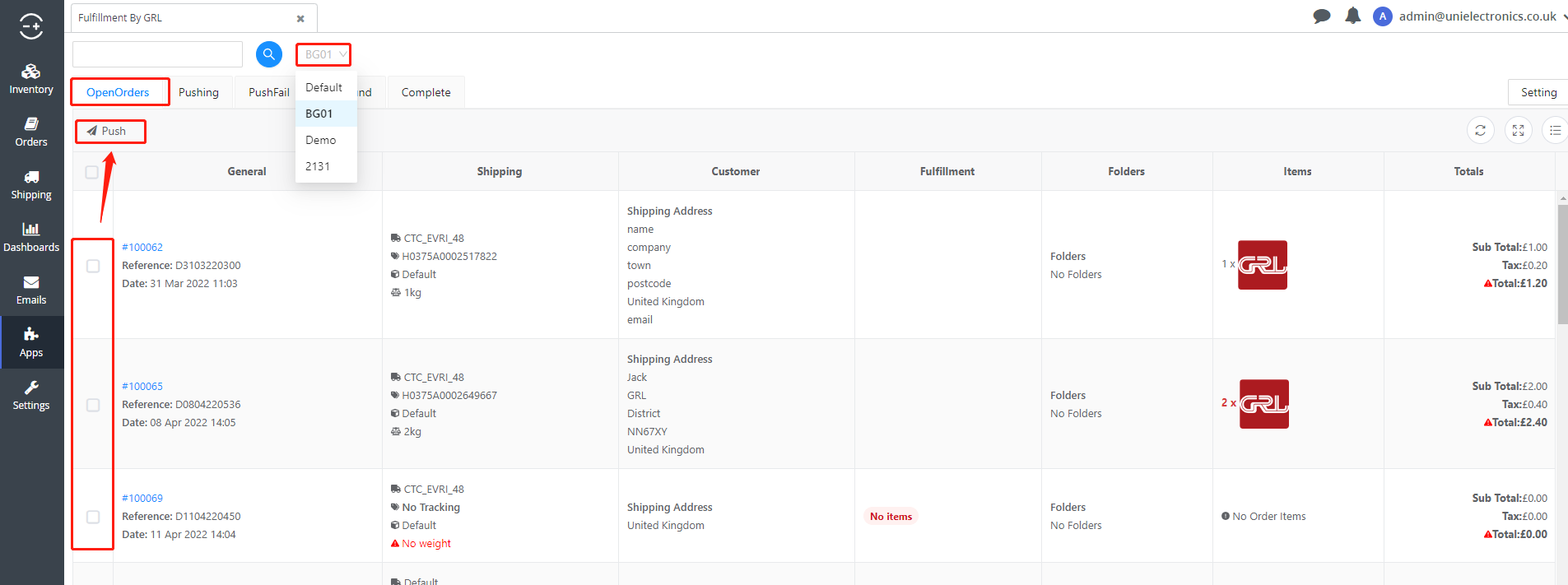 After clicking "Push", a logistics product selection interface will pop up. Select the product you need and click "Push" in the pop-up window. 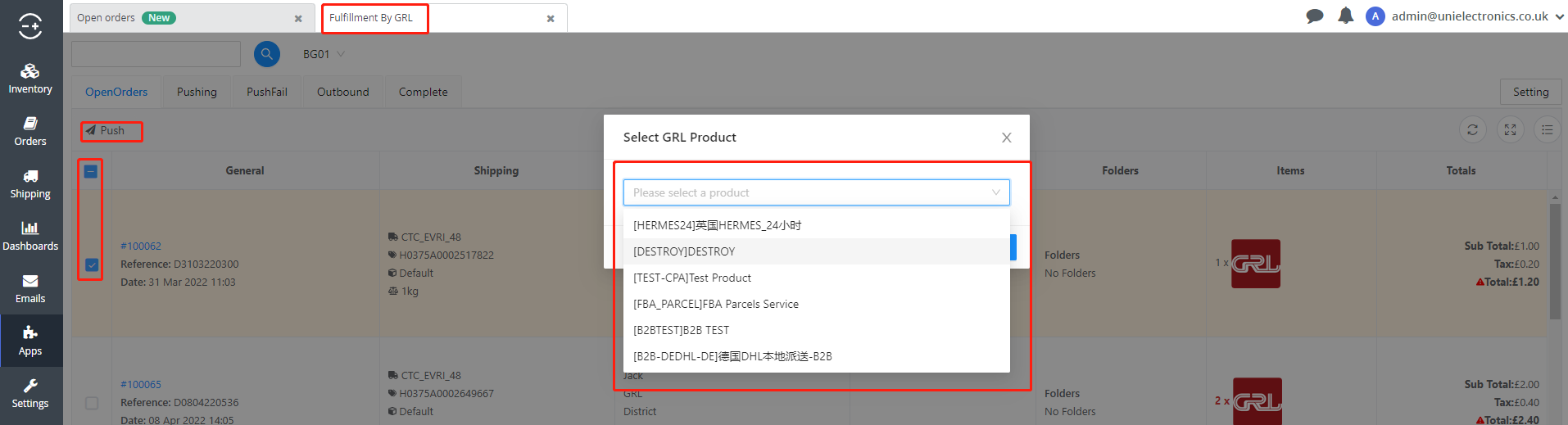 You can see the orders being created in the "Pushing" tab, the orders that failed to be pushed in the "PushFail" tab, and the orders that successfully created the outbound order in the Outbound tab. **Orders that start to be pushed will be locked**,Displayed in 'Pushing', no operation is allowed.  ### Repush Order Orders that have failed to be pushed in the "PushFail" tab can be re pushed by clicking "Delay". After re pushing, they will appear again in the Pushing queue. You can check the reason for the push failure in the 'Fail Message' column. Resolve the issue based on the cause and re push. 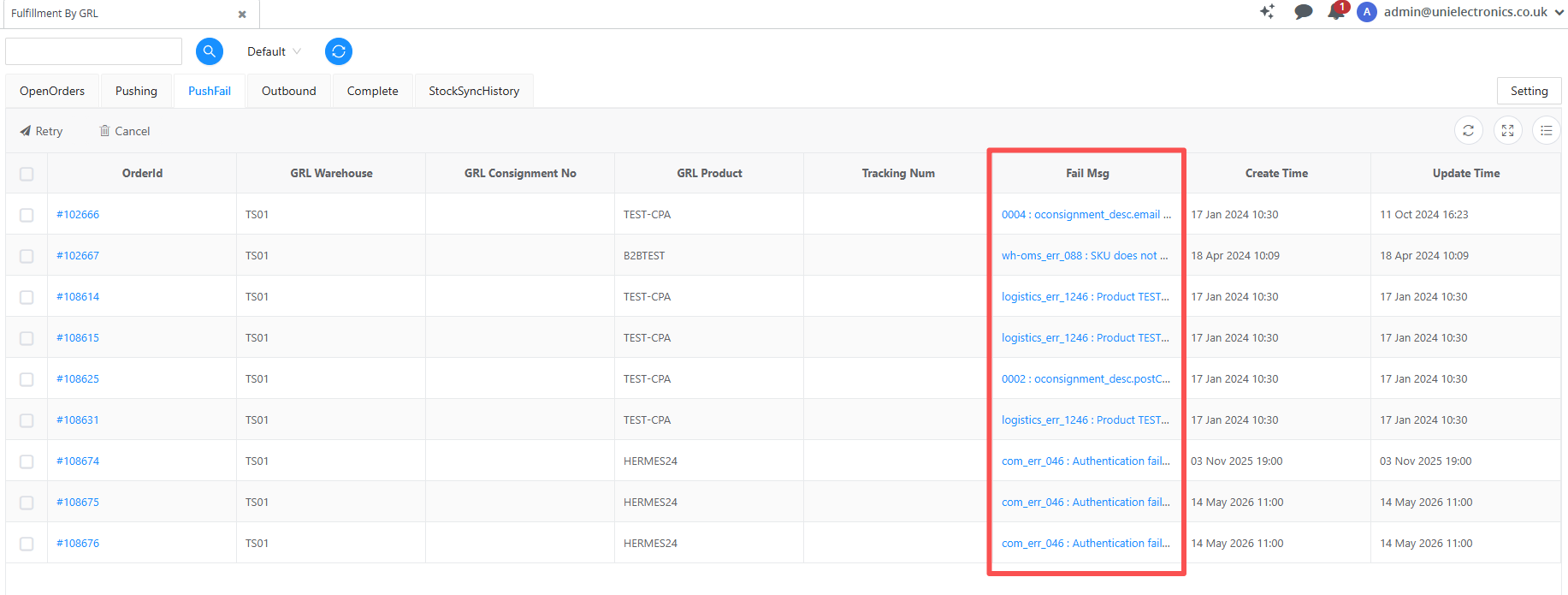 ### Cancel Orders that fail to push can be cancelled, as shown in the figure below. Clicking cancel will return the order to Open Orders.  Orders that have been successfully pushed (with already created outbound orders) can also apply for cancellation (as shown in the figure below). When canceling an order, the APP will request GRL to cancel the outbound order. Only with GRL's consent can the order be successfully cancelled and returned to OpenOrders. There will be a reminder if GRL does not allow cancellation.  **Orders that return to Open Orders will be unlocked**。 ### Synchronize outbound status Successfully creating an outbound order can be done by manually clicking the "Sync Status" button, and the APP will request GRL's system to obtain the latest shipment status of the outbound order. If it has already been shipped out, the tracking number will be obtained and the status will be displayed in "Complete".**The status of the order in Linnwoks will also change to Processed.** It is also possible that there is a tracking number, but the order has not been shipped yet and is still in 'Outbound'. 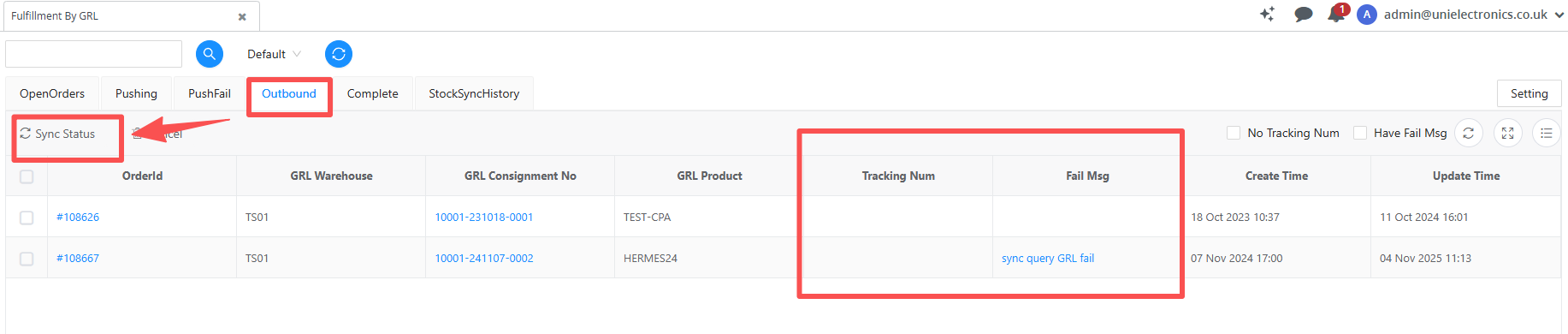 If "Auto Sync Status" is enabled in "Settings - Basic Settings" above, the APP will automatically request the system of GRL to update status. ## Sync inventory Select the warehouse that needs to synchronize inventory (those that have already configured warehouse mapping relationships, please refer to the warehouse mapping above for details), click the synchronize inventory icon, and the system will asynchronously synchronize inventory to the Linnworks. **Synchronization logic:** Use all 100 SKUs in Linnworks to query GRL for inventory in stock, and update the inventory to the current warehouse in Linnworks. Not updating if not found. The synchronization progress will be displayed in the 'StockSyncHistory' list, with one row of master data synchronized each time. Each synchronized master data row can expand the query failure success status. One row in the details represents a request for 100 SKUs. If one of the 100 SKUs is updated successfully, the status of the request row is successful; If the inventory of a SKU cannot be found, it is marked as failure. 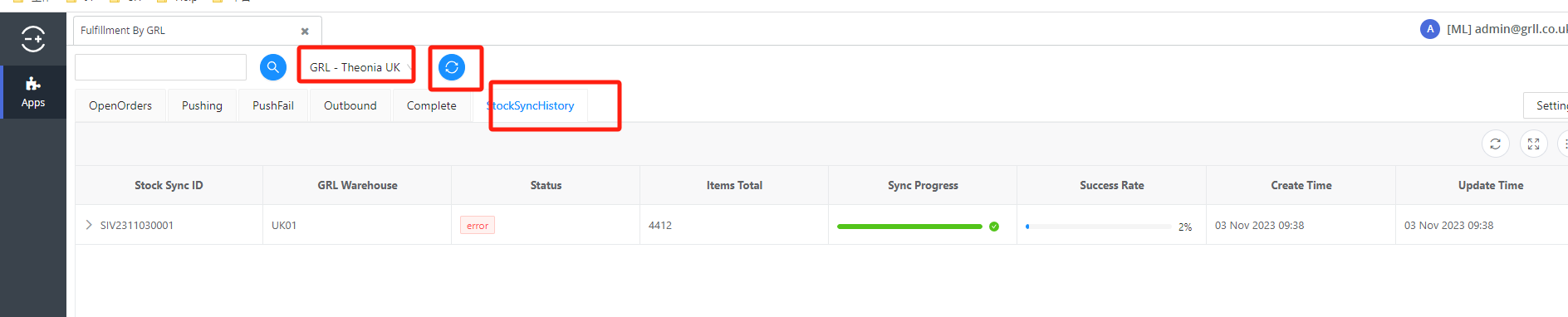 ## Frequently Questions ### Remind 'Token has expired' when operating the app **Solution:** Close the current page and reopen it, or refresh the current page through the browser's refresh function. Reason for occurrence: Linnworks' rule is that authorization information expires within half an hour. If there is no operation after half an hour, the page must be refreshed to obtain authorization again. ### What if the SKU of the order is different from that of GRL? **Problem description:** The SKU for order sales is SKU001+002, and GRL's system only has SKU001 and SKU002. In reality, one SKU001+002 needs to be shipped with one SKU001 and one SKU002. How do I operate this? **Solution:** Step1: Enable SKU mapping in customer attributes(Contact GRL's customer settings); 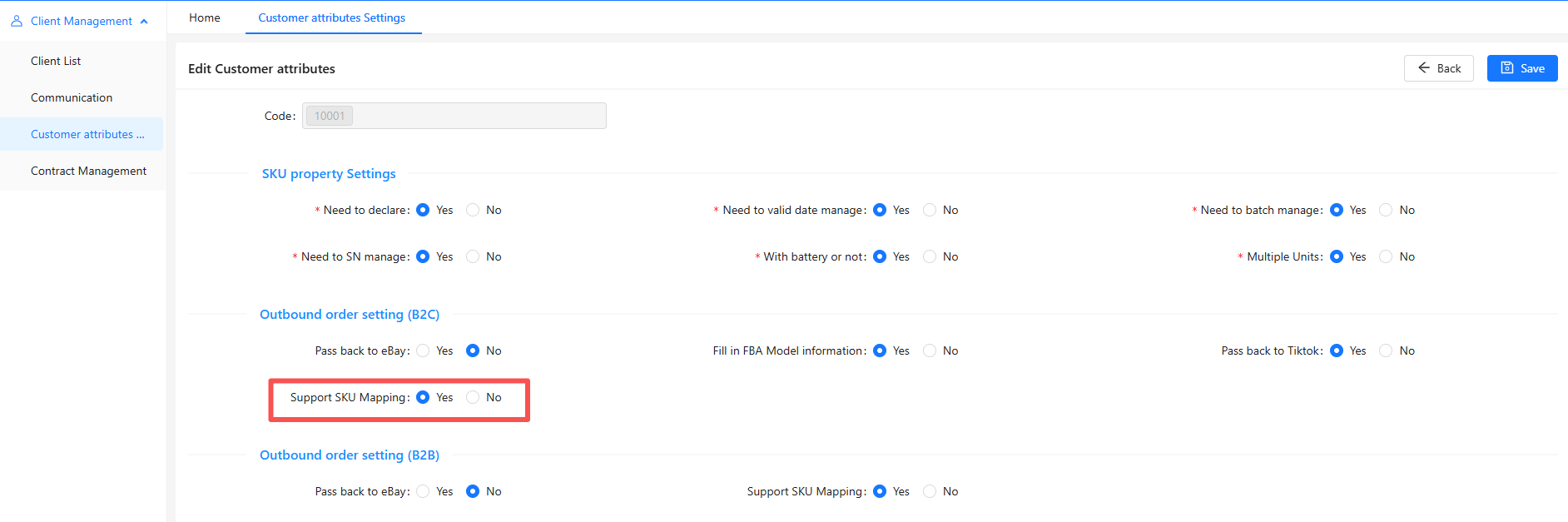 Step2: You maintains the relationship between the platform SKU (SKU001+002) and the actual SKUs to be shipped (SKU001 and SKU002) in OMS. 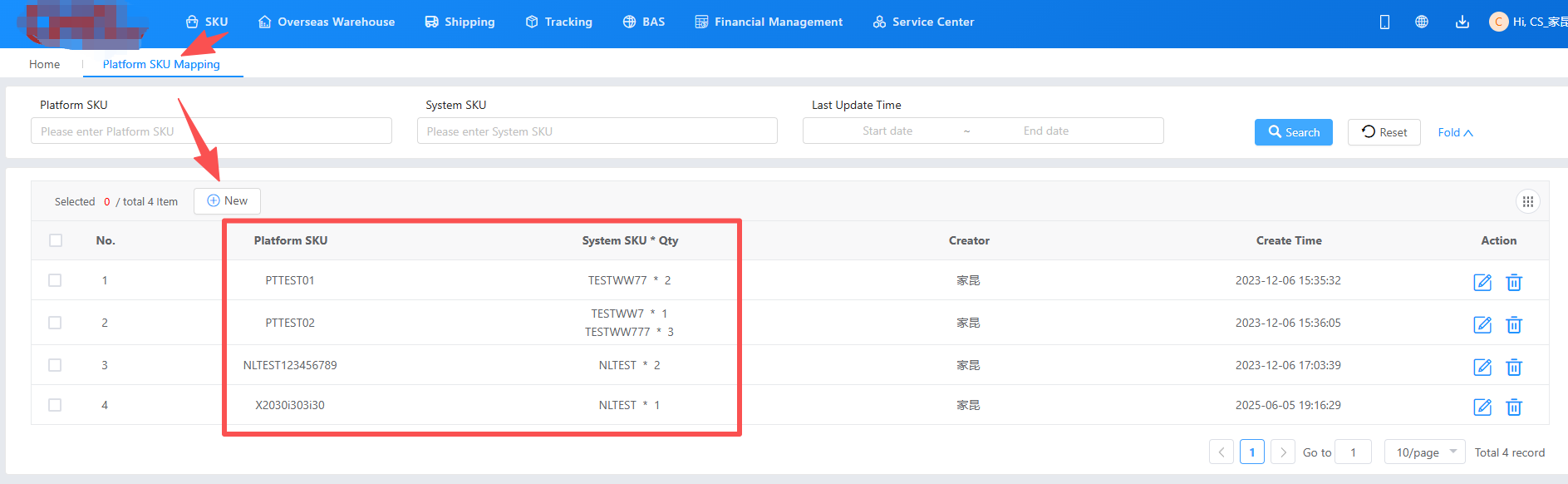 After completing the above two steps, the SKU001+002 pushed by Linnworks will be directly converted into SKU001 and SKU002 for ordering and shipping based on the SKU mapping relationship.
admin
2026年7月27日 18:15
分享文档
收藏文档
上一篇
下一篇
微信扫一扫
复制链接
手机扫一扫进行分享
复制链接
关于 MrDoc
觅思文档MrDoc
是
州的先生
开发并开源的在线文档系统,其适合作为个人和小型团队的云笔记、文档和知识库管理工具。
如果觅思文档给你或你的团队带来了帮助,欢迎对作者进行一些打赏捐助,这将有力支持作者持续投入精力更新和维护觅思文档,感谢你的捐助!
>>>捐助鸣谢列表
微信
支付宝
QQ
PayPal
Markdown文件
分享
链接
类型
密码
更新密码